
Not digging Apple’s new Phone app in iOS 26? Here’s how to switch it up.
Apple’s iOS 26 Public Beta: A Closer Look
Apple’s new iOS 26 public beta is officially out, and having tested it out, I can confess that I love the most controversial thing about it: The new Liquid Glass design. Yes, it can make your phone feel a little sluggish at times, but it makes everything transparent (in case the default look isn’t liquid enough for you, here’s our tutorial on how to really make everything transparent).
The Unified Phone App: Love it or Hate it?
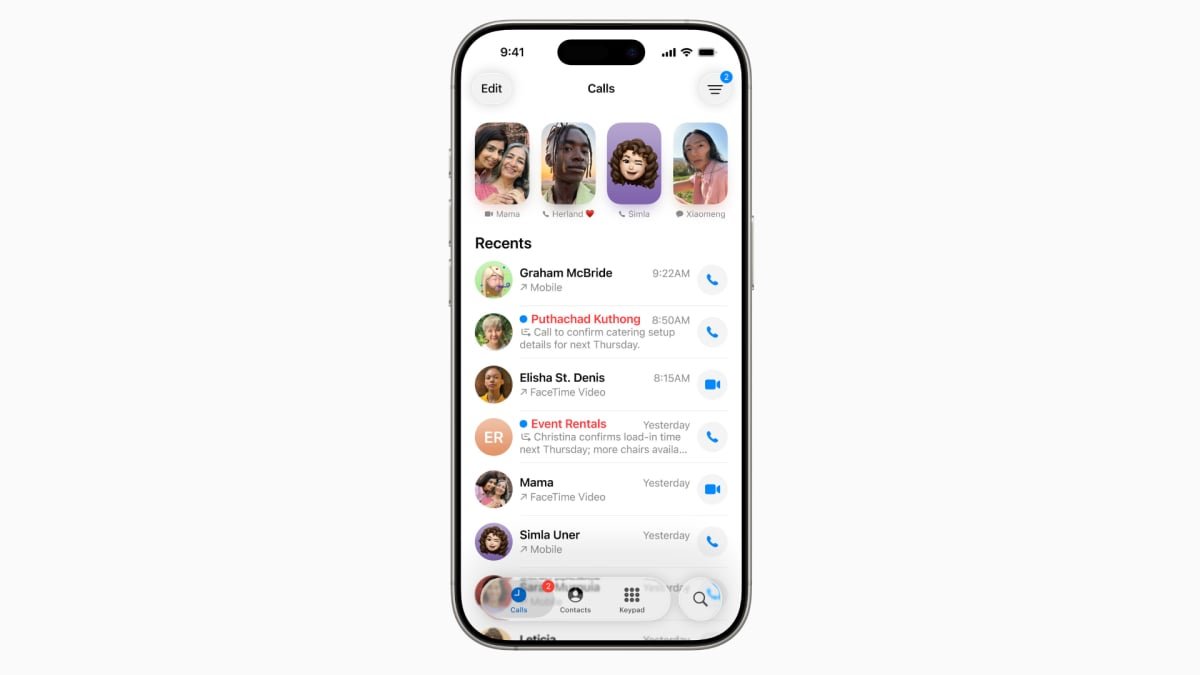
But after using iOS 26 beta on my main phone for a while, I’ve realized that there is a feature that’s almost always in the way, instead of being helpful. I’m talking about the new, Unified look for the Phone app. It’s not enabled by default, but the iPhone will ask you if you want to enable it, to which (of course) I said yes. The Unified look combines your Recents, Favorites, and Voicemail into one page, and it also removes the search bar from the top of the screen and replaces it with an icon in the bottom right.

Fortunately, this still exists. It’s called the Classic look, and you can bring it back it by going to the Calls tab, tapping on the three lines icon in the top right, and choosing Classic. Boom — everything is as it once was.
Classic vs Unified: The Choice is Yours
As a bonus, the Classic look also offers an easy, one tap filter between All and Missed calls on top of the screen, which isn’t available in the Unified look. Apple likely knew the new look might take some getting used to, which is why the old version is still available. But I bet there will be a lot of people, like me, who will get annoyed by the new design without even realizing they can switch back. So there you have it: If you like the Unified look, by all means turn it on; but if you prefer to stay in the Classic view, it’s still available.